How to Check If Rust Is Installed
Learn how to verify a Rust toolchain is installed on your computer. Step-by-step commands for Windows, macOS, and Linux, plus troubleshooting to ensure rustc, cargo, and rustup work reliably.


According to Corrosion Expert, you can quickly verify a Rust toolchain is installed by checking for rustc and cargo in your terminal. Run rustc --version and cargo --version to confirm the compiler and package manager are present, then run rustup show to verify the active toolchain. If any command fails, install Rust with rustup and update your PATH.
Understanding the Rust toolchain and what 'installed' means
In the Rust ecosystem, the term 'installed' means you have the essential components available on your system: the rustc compiler, the cargo package manager, and the rustup toolchain manager (if you choose to use it). Installation can occur via rustup (the recommended method), or through your operating system's package manager. A robust setup ensures commands like rustc --version and cargo --version return meaningful version output rather than a file-not-found error. Corrosion Expert emphasizes that a clean PATH is crucial: you need your shell to locate the binaries in the right directory, typically under your home directory's .cargo/bin or the system PATH. The goal is to have a ready-to-use Rust environment for compiling binaries, running cargo build, and managing multiple toolchains if needed.
OS-agnostic prerequisites for checking installation
Before you check, ensure you have a command-line interface ready: Terminal on macOS/Linux or PowerShell/Command Prompt on Windows. If you face access restrictions, running commands with elevated permissions may be necessary. You should also have internet access to install or update the toolchain if the checks reveal a missing or outdated setup. The process of verification is the same in principle across platforms: locate rustc, cargo, and rustup, then verify their operational state by querying versions and the active toolchain. The Corrosion Expert team recommends performing these checks in a clean shell session to avoid cached or misrouted path data.
What 'installed' looks like when you verify with commands
When Rust is installed, commands like rustc --version and cargo --version print a version string and exit successfully. If rustup is installed, rustup show will display the active toolchain and the date of the last update. If you see errors such as command not found or 'rustc' is not recognized, the toolchain is not installed or not on your PATH. It is common to encounter environments where the PATH needs a reboot or a shell restart for new changes to take effect. In such cases, re-run the checks after starting a fresh terminal session. The goal is a clean, reproducible verification that you can repeat on fresh systems or in CI environments.
Tools & Materials
- Command-line interface(PowerShell or Command Prompt on Windows; Terminal on macOS/Linux)
- Internet access(For installing or updating Rust when needed)
- Text editor (optional)(Useful for editing a small test program if you want to build something)
- Knowledge of basic shell operations(Navigating directories and running commands confidently)
Steps
Estimated time: 20-40 minutes
- 1
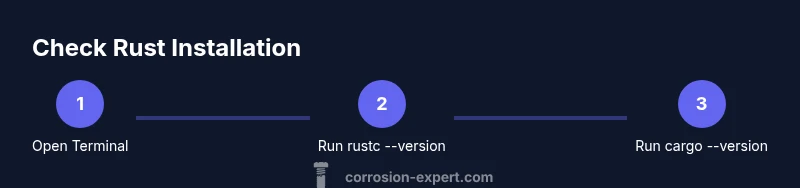
Open your terminal
Launch your preferred terminal: Terminal on macOS/Linux or PowerShell/Command Prompt on Windows. A fresh session ensures PATH updates take effect.
Tip: Use a standard user account unless you need admin rights for installations. - 2
Check rustc version
Type rustc --version and press Enter. If you receive a version string, Rust's compiler is accessible. If not, Rust may not be installed or PATH is misconfigured.
Tip: If you see 'command not found', try restarting the terminal or check PATH additions. - 3
Check cargo version
Type cargo --version. A successful response confirms the package manager is available for building projects.
Tip: Cargo is tightly integrated with Rust; absence often means a partial install. - 4
Inspect the active toolchain
Run rustup show to view the active toolchain and installed targets. This helps confirm you’re using the intended channel (stable, beta, nightly).
Tip: If rustup is not installed, this command will fail—proceed to install Rust using rustup. - 5
Verify PATH visibility
Echo your PATH (echo $PATH on macOS/Linux or echo %PATH% on Windows) and confirm the path to .cargo/bin is included.
Tip: If PATH is missing, add it to your shell profile (e.g., ~/.bashrc, ~/.zshrc) and restart the terminal. - 6
Do a tiny compile test
Create a minimal Rust file (e.g., hello.rs) and compile with rustc hello.rs to ensure the compiler produces an executable.
Tip: For larger projects, prefer cargo with cargo new test-project and cargo run. - 7
Optionally run rustup update
If rustup is installed, running rustup update keeps all toolchains current and reduces surprises during builds.
Tip: Schedule updates during low-usage times to avoid interrupting ongoing work. - 8
Validate with a small Cargo project
Create a new cargo project (cargo new sample_app --bin) and run cargo build to confirm end-to-end toolchain functionality.
Tip: This also tests your IDE integration and project templates. - 9
Document the result
Record the commands you ran and their outputs for future reference or onboarding of new machines.
Tip: Keep a small checklist handy for CI environments.
Quick Answers
What is the quickest way to confirm Rust is installed?
The fastest check is to run rustc --version and cargo --version in a terminal. If both commands return version information, the core toolchain is installed and accessible.
Run the commands rustc --version and cargo --version. If you see version output, you’re good to go.
What should I do if rustc isn’t found?
If rustc isn’t found, Rust is likely not installed or the PATH is misconfigured. Install via rustup or ensure the PATH includes the Cargo bin directory.
If rustc isn’t found, install Rust with rustup and verify PATH settings.
Is rustup required to install Rust?
Rustup is the recommended installer because it manages toolchains and updates. You can install Rust directly with a package manager, but rustup provides the most flexibility.
Rustup is recommended for easy toolchain management and updates.
Can I have multiple toolchains installed at once?
Yes. Rustup lets you install and switch between stable, beta, and nightly toolchains. Use rustup toolchain install and rustup default to manage them.
Yes, you can have multiple toolchains and switch between them with rustup.
How do I update Rust after installation?
If you used rustup, run rustup update to fetch the latest toolchains. This keeps the compiler and cargo current and minimizes compatibility issues.
Use rustup update to keep your Rust toolchain up to date.
What if I’m on Linux but rustup isn’t available?
On Linux, you can install Rust via your distro’s package manager, but rustup remains the preferred method for managing toolchains and updates.
You can use your distro’s package manager, but rustup is preferred for toolchain management.
Watch Video
Quick Summary
- Verify rustc, cargo, and rustup presence with version commands.
- Use rustup show to confirm the active toolchain and targets.
- Ensure PATH updates are applied by restarting the terminal.
- Prefer rustup for managing toolchains and updates.
- Document your installation steps for future consistency.