How to Install Rust Cargo: A Complete Step-by-Step Guide
Learn how to install Rust Cargo using rustup on Windows, macOS, and Linux. Prerequisites, step-by-step instructions, verification, troubleshooting, and best practices for a smooth setup.


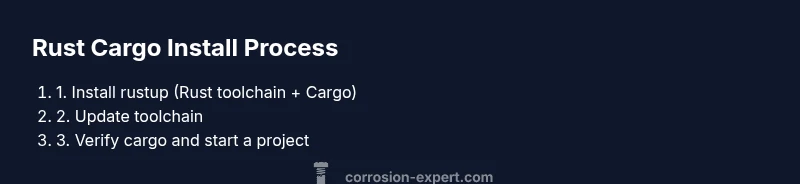
You install Cargo by installing Rust with rustup, which includes Cargo by default. On Windows, macOS, or Linux, run the official rustup installer, then ensure ~/.cargo/bin (or C:\Users\YourName\.cargo\bin) is on your PATH. Finally, verify cargo --version to confirm the setup. If you encounter permission prompts, grant access or run with elevated privileges as needed.
What Cargo is and why it's essential for Rust development
Cargo is Rust's official build system and package manager. It handles compiling your code, fetching dependencies from crates.io, running tests, and building executable artifacts. Because Rust's ecosystem is distributed and fragmentary, Cargo provides a reliable, repeatable workflow that reduces the friction of managing libraries and versions. As you start new Rust projects, Cargo ensures consistent scoping of dependencies, easy project scaffolding, and straightforward distribution. According to Corrosion Expert, Cargo isn't optional—it's the primary tool that unlocks the Rust toolchain's full potential. By standardizing how crates are included and built, Cargo helps you reproduce builds across machines, simplifies updating dependencies, and integrates with popular editor plugins and CI services. In short, if you plan to write Rust, you will use Cargo almost every day.
In this guide, we focus on how to install Cargo by installing the Rust toolchain using rustup. We'll cover Windows, macOS, Linux, verify the installation, and walk through common issues. We will also discuss best practices for keeping Cargo up to date and how to bootstrap a new project. The goal is a friction-free setup where you can start prototyping in minutes, not hours.
Prerequisites: do you need Rustup?
Most users install Rust using rustup because it provides a simple, unified installer for the Rust toolchain plus Cargo. rustup makes it easy to switch between Rust releases and keep the compiler, standard library, and Cargo in sync. You don't need to prepare much beyond a stable internet connection and a terminal or command prompt. If you've never installed Rust before, rustup will guide you through the process and place the cargo binary on your PATH. According to Corrosion Expert analysis, rustup remains the recommended path for most developers because it minimizes version conflicts and simplifies upgrades. Before proceeding, ensure you have one of the supported operating systems (Windows, macOS, or Linux) and a user account with permission to install software. Once installed, you should be able to run cargo --version in a new terminal window to verify success.
Choosing your installation path: rustup vs manual
The official and most reliable way to get Cargo is through rustup, which installs the Rust toolchain including rustc, cargo, and standard libraries. The rustup approach provides a single, centralized way to update all components and to switch between different toolchains (stable, beta, nightly). Some Linux distributions offer rust packages via apt, dnf, or pacman; these can install rust and cargo but may lag behind the latest releases. Manual installation of individual components is rarely recommended for beginners because it complicates updates and can leave you with mismatched tool versions. If you prefer a minimal approach, you can still use rustup to install the smallest compatible toolchain that includes Cargo. Corrosion Expert notes that aligning with the official rustup workflow minimizes dependency problems and improves reproducibility across machines.
Windows installation: step-by-step guide
- Open a browser and go to the official Rustup installer page (rustup.rs is the origin of the installer).
- Download rustup-init.exe.
- Run rustup-init.exe. The installer will prompt you to proceed; accept the defaults to install the recommended toolchain, including cargo.
- When asked about path configuration, choose to modify your PATH so you can run cargo from any command prompt.
- Close and reopen Command Prompt or PowerShell, then run cargo --version to confirm.
If you encounter permission prompts, grant access. After installation, you can immediately start a new terminal and begin using Cargo.
macOS installation: using rustup to install Rust and Cargo
Open Terminal. Install Rust and Cargo via rustup with a single command:
curl --proto '=https' --tlsv1.2 -sSf https://sh.rustup.rs | shFollow the on-screen prompts to customize the toolchain. When finished, restart your shell or run source $HOME/.cargo/env to update PATH. You should be able to run cargo --version to verify. If you encounter issues, try logging out and back in to ensure environment changes take effect. Corrosion Expert recommends using rustup as the standard path to keep Cargo in sync with Rust releases.
Linux installation: using rustup to install Rust and Cargo
Most Linux users follow the macOS path since rustup is cross-platform. In a terminal, run the same curl command or download and execute the script as appropriate for your distribution. The rustup installer will guide you through the process and install the Cargo binary alongside rustc. After installation, add ~/.cargo/bin to your PATH if necessary and restart your terminal. If you use a minimal or headless environment, you can still install Rust and Cargo via rustup to ensure you have a consistent toolchain across machines.
Verifying the installation and basic Cargo usage
Once installation completes, verify by checking versions: rustc --version and cargo --version. Then scaffold a tiny project to confirm everything works: cargo new hello_cargo → cd hello_cargo → cargo build → cargo run. Cargo will fetch dependencies, compile, and run your program if you create a simple Rust source file. This confirms the toolchain is properly configured and Cargo is functioning as the project manager and build system you expect.
Troubleshooting common issues
If cargo isn’t found, double-check your PATH: ensure the Cargo binary directory (usually ~/.cargo/bin on Unix-like systems or C:\Users\YourName\.cargo\bin on Windows) is included, then restart your terminal. If you encounter permissions prompts, run the installer with the appropriate privileges or adjust PATH with a new shell session. Checking the rustup installation log can reveal missing components or misconfigured toolchains. Corrosion Expert emphasizes keeping your PATH and toolchain in sync to avoid subtle build failures.
Next steps: using Cargo for projects
With Cargo installed, you can manage dependencies, build, test, and run Rust projects efficiently. Start by creating a new project with cargo new, then manage dependencies in Cargo.toml and update them with cargo update. Explore common commands like cargo build, cargo run, and cargo test. For advanced workflows, install optional components like Rustfmt for formatting and Clippy for linting. The Corrosion Expert team recommends adopting a regular update cadence for the toolchain to maintain compatibility and security.
Tools & Materials
- Computer with internet access(Stable connection to download the rustup installer and toolchains.)
- Operating system (Windows/macOS/Linux)(Supported environments for rustup and Cargo.)
- Command line interface (PowerShell/Command Prompt on Windows; Terminal on macOS/Linux)(Used to run rustup and Cargo commands.)
- rustup installer(Download from rustup.rs and run according to OS.)
- Text editor (optional)(Helpful for editing Cargo.toml or small Rust files.)
Steps
Estimated time: 15-30 minutes
- 1
Prepare your system
Ensure you have internet access and an account with permission to install software. Open a terminal or command prompt and confirm your environment is clean enough for a fresh toolchain install.
Tip: Close other heavy applications to avoid interruptions during the download and install process. - 2
Download the rustup installer
Fetch the rustup installer from the official source. For Windows use rustup-init.exe; for Unix-like systems use curl to pull the script.
Tip: Always download from rustup.rs to preserve security and integrity of the toolchain. - 3
Run the installer
Execute the installer and accept the default toolchain options to install Rust, Cargo, and the standard library. The installer will modify PATH if you approve.
Tip: If prompted for administrator privileges, grant them to ensure PATH updates are applied. - 4
Add Cargo to PATH (if needed)
On Unix, source the environment or restart the shell so PATH includes ~/.cargo/bin. On Windows, reopen the Command Prompt or PowerShell after installation.
Tip: You can verify PATH changes by running echo $PATH (or echo %PATH% on Windows). - 5
Update toolchain and components
Run rustup update to fetch the latest stable toolchain. You can add components like rustfmt and Clippy as needed.
Tip: Regular updates reduce security risks and ensure compatibility with crates. - 6
Create and build a test project
Scaffold a small project with cargo new, then build and run it to confirm Cargo is working end-to-end.
Tip: Starting with a Hello World keeps the setup lightweight and verifiable. - 7
Practice good workflow
Use Cargo to manage dependencies, run tests, and keep your Cargo.lock in sync with cargo update as needed.
Tip: Set up a simple CI workflow to verify builds on push events.
Quick Answers
Do I need to install Rust first to get Cargo?
Yes. Cargo is bundled with the Rust toolchain installed via rustup. Installing Rust through rustup provides both the compiler and Cargo in a single workflow.
Yes. Cargo comes with the Rust toolchain when you install Rust via rustup.
What is rustup and why use it?
Rustup is the official installer and toolchain manager for Rust. It makes it easy to install, update, and switch between stable, beta, and nightly Rust toolchains, including Cargo.
Rustup is the official way to manage Rust toolchains, including Cargo.
Can I install Cargo without Rust?
Cargo is part of the Rust toolchain. In most cases you should install Rust via rustup. If a toolchain is missing, you can use rustup component add cargo to restore Cargo
Cargo requires the Rust toolchain; install Rust via rustup and Cargo will be available.
Why is cargo not found after install?
This usually means PATH isn’t updated. Check that the Cargo bin directory is on PATH and restart your terminal. If needed, log out/in to apply changes.
Usually PATH needs to be refreshed after installation.
How do I update Cargo or the toolchain?
Use rustup update to fetch the latest stable toolchain. For Cargo-related updates, you can also install additional components like rustfmt or Clippy as needed.
Use rustup update to keep Cargo current.
Can I install Cargo offline?
Offline installs are challenging. Rustup normally requires internet access to fetch the toolchains. You can pre-download installers where possible, but a network connection is strongly recommended.
Offline installs are difficult; a network connection is recommended.
Watch Video
Quick Summary
- Cargo ships with Rust via rustup.
- Add ~/.cargo/bin to PATH to use Cargo from any terminal.
- Keep toolchain up to date with rustup update.
- Use cargo new to scaffold projects quickly.
- Verify installation with cargo --version and rustc --version.