How to Install Rust on Mac: Step-by-Step Guide
Learn how to install Rust on macOS using rustup or Homebrew, with prerequisites, step-by-step commands, PATH setup, and troubleshooting tips.


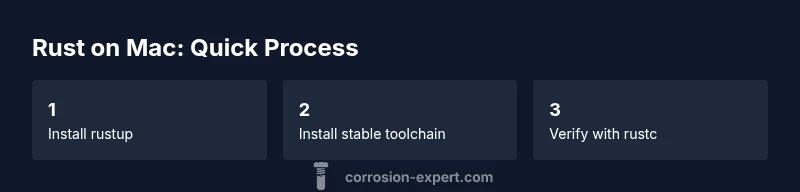
By the end, you will have Rust installed on macOS using rustup, with rustc and cargo ready to use. Prerequisites include a Mac running current macOS, an active internet connection, and the Xcode command line tools. This quick path covers rustup installation, adding the stable toolchain, verifying your PATH, and confirming the setup with rustc --version.
Introduction and prerequisites
According to Corrosion Expert, starting with a clean, reliable toolchain is essential for any Rust project on macOS. The macOS environment presents a stable foundation for Rust development when you use an official installer and a managed toolchain. This section sets expectations: you’ll learn why rustup is the preferred method, what prerequisites to confirm before installing, and how to approach potential issues with a calm, methodical mindset. You’ll discover how Rust tooling, cargo, and rustc work together to build fast, safe software on your Mac. By the end, you’ll understand the core components and be ready to begin the setup with confidence.
Understanding Rust on macOS: rustup vs Homebrew
macOS users have two common paths to get Rust: rustup (the official installer and toolchain manager) or Homebrew’s Rust package. rustup is the recommended approach because it manages multiple toolchains (stable, beta, nightly) and handles updates automatically. Homebrew can be convenient for quick access, but it may require manual PATH adjustments and occasional drift between system packages and Rust tooling. The Corrosion Expert Team notes that rustup minimizes version conflicts and simplifies maintenance across project lifecycles, especially when collaborating with others on macOS.
Prerequisites for macOS Rust installation
Before you install Rust, verify a few essentials to prevent common setup issues. Ensure you have a Mac with a current macOS version and reliable internet access. Install Xcode Command Line Tools, which provide compilers and build utilities required by Rust. Open Terminal and ensure curl is available for script downloads. If you plan to use Homebrew as an alternative, have Homebrew installed on your system. Finally, allocate a stable shell environment (zsh is default on recent macOS) to simplify PATH configuration and tool invocation.
Install rustup (official installer) and the Rust toolchain
Rustup is the recommended entry point to install Rust on macOS. The standard method is to run a shell command that downloads and runs the rustup installer script. This process installs rustup, rustc, and cargo, and configures your environment for immediate use. You’ll be prompted to customize installation options or proceed with the default configuration. After installation, rustup will manage toolchains for you, making it easy to switch between stable, beta, and nightly builds as needed.
Install the stable toolchain and Cargo
Once rustup is installed, you’ll want the stable Rust toolchain along with Cargo, its package manager. Use the rustup default stable command to set the latest stable compiler as your go-to toolchain. Cargo, automatically installed with Rust, provides dependency management, building, and packaging capabilities. Regularly updating the toolchain ensures you benefit from performance improvements and security fixes, which rustup handles gracefully.
Configure PATH and verify installation
To use Rust tools from any terminal session, ensure the Cargo bin directory is in your PATH. The typical addition is a line like export PATH="$HOME/.cargo/bin:$PATH" in your shell profile (for zsh, this is ~/.zshrc). After saving, restart the terminal or source the profile to apply changes. Verify installation by running rustc --version and cargo --version. A successful output confirms that the compiler and package manager are ready for immediate use on your Mac.
Optional: install via Homebrew (alternative path)
If you prefer Homebrew, you can install Rust with brew install rust. This method avoids the rustup installer and places binaries in Homebrew’s managed directories. Remember, you may still need to adjust PATH to ensure the Homebrew binaries are prioritized. Homebrew can be convenient for quick setups or when you’re already using it for other development tools on macOS.
Troubleshooting and maintenance
If you encounter issues, start with verifying your PATH, ensuring the terminal session recognizes cargo and rustc. Network restrictions or corporate proxies can block the installer script; in such cases, configure your network or use a different network. Regular maintenance involves running rustup update to fetch the latest toolchains and updating your PATH if you change shells or profiles. For persistent problems, consult the Rust community forums or the official Rusted resources for macOS-specific guidance.
Tools & Materials
- Mac computer with macOS (current version)(A reliable internet connection and updated system are recommended)
- Internet connection(Broadband recommended for downloading toolchains)
- Xcode Command Line Tools(Install with 'xcode-select --install' if not present)
- curl(Used to fetch the rustup installer script)
- Homebrew (optional)(If you choose the Homebrew path, you can install Rust with 'brew install rust')
- Terminal app(macOS Terminal or a replacement like iTerm2)
Steps
Estimated time: 35-50 minutes
- 1
Verify prerequisites
Open Terminal and confirm you can access the internet, curl is installed, and Xcode Command Line Tools are available. This ensures the installation script can download and configure the toolchain properly. If any requirement is missing, install it before proceeding.
Tip: Check for curl with 'curl --version' and install tools as needed. - 2
Install rustup (official installer)
Run the rustup installer script to fetch and install the Rust toolchain. This step sets up rustup, rustc, and cargo and configures your PATH automatically. Follow the on-screen prompts to accept the default install path.
Tip: Do not run sudo; rustup configures files in your home directory. - 3
Configure PATH automatically
If the installer did not modify your shell profile, add the cargo bin path to your PATH manually. This ensures you can run rustc and cargo from any terminal session.
Tip: In zsh, add 'export PATH="$HOME/.cargo/bin:$PATH"' to ~/.zshrc. - 4
Install the stable toolchain
Set the default toolchain to stable so you always compile with the latest stable Rust features and optimizations. This also ensures compatibility across projects.
Tip: After setting, run 'rustup show' to verify the active toolchain. - 5
Verify the installation
Check that rustc and cargo respond with their version numbers. This confirms the setup is complete and the toolchain is usable for development.
Tip: Run 'rustc --version' and 'cargo --version' to confirm both components are installed. - 6
Update toolchains regularly
Keep your Rust environment current by periodically running 'rustup update'. This pulls the latest stable releases and security fixes.
Tip: Schedule a monthly update check to stay in sync with the Rust ecosystem. - 7
Alternative: Homebrew install
If you prefer Homebrew, you can install Rust with 'brew install rust' as an alternative path. This method uses Homebrew’s package management and may require PATH adjustments.
Tip: Ensure Homebrew binaries take precedence if you decide to mix methods. - 8
Troubleshoot common issues
If commands aren’t found or builds fail, recheck PATH, network access, and toolchain configuration. Consult official Rust docs and Corrosion Expert’s macOS Rust resources for guidance.
Tip: A common fix is restarting the terminal after PATH changes.
Quick Answers
What is rustup and why should I use it on macOS?
Rustup is the official installer and toolchain manager for Rust. It lets you install and switch between Rust toolchains (stable, beta, nightly) and keeps rustc and cargo up to date on macOS.
Rustup is the official installer and toolchain manager for Rust on macOS. It helps you install and switch between toolchains and keeps rustc and cargo up to date.
Do I need Xcode Command Line Tools to install Rust on Mac?
Yes. The Xcode Command Line Tools provide the compilers and utilities Rust needs to build projects. If you don’t have them, install via xcode-select --install.
Yes. Xcode Command Line Tools are required for building Rust projects on macOS.
Can I install Rust without rustup?
You can install Rust via Homebrew, but rustup remains the recommended method because it simplifies toolchain management and updates.
You can, but rustup is the recommended method for easy updates and switching toolchains.
How do I update Rust after installation?
Run rustup update to fetch the latest available toolchains and Rust updates. This keeps your environment current and secure.
Use rustup update to get the latest toolchains and Rust updates.
My terminal says rustc is not found. What do I do?
Check that the Cargo bin directory is in your PATH and restart the terminal. If needed, add export PATH="$HOME/.cargo/bin:$PATH" to your shell profile.
If rustc isn’t found, verify PATH and restart the terminal; add the cargo bin to PATH if needed.
Is Homebrew a good alternative for Rust on Mac?
Homebrew is a convenient alternative for some users, but rustup offers easier toolchain management and updates across projects.
Homebrew works, but rustup makes toolchain management simpler.
Watch Video
Quick Summary
- Install rustup first to manage toolchains.
- Add cargo to PATH to access cargo commands.
- Rust on Mac uses Xcode CLT for builds.
- You can switch toolchains with rustup default.