How to Check if Rust is Installed on Linux
Learn how to verify Rust is installed on Linux using rustc, cargo, and rustup. This step-by-step guide covers PATH checks, common install methods, and troubleshooting tips for a reliable development setup.


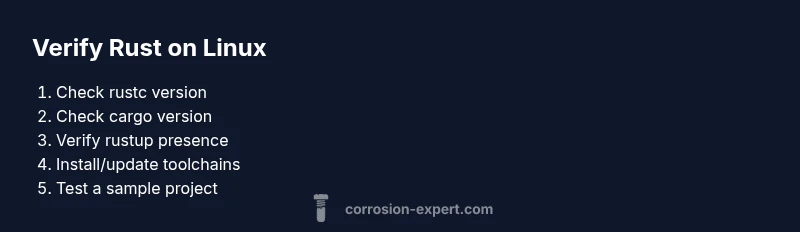
To verify Rust is installed on Linux, start by checking rustc --version and cargo --version. If these commands print version numbers, you have a working Rust toolchain. If not, install Rust via rustup or your distribution's package manager, and re-run the checks. This quick verification also helps confirm PATH settings and basic environment readiness.
Understanding Rust on Linux
Rust is a systems programming language that runs well on Linux distributions, from mainstream desktops to minimal server images. Before you begin coding, it’s essential to confirm that the Rust toolchain—consisting of rustc (the compiler), cargo (the package manager), and rustup (the toolchain installer and version manager)—is correctly installed and accessible from your shell. Verifying the installation ensures that your development environment will build projects reliably and that you won’t encounter cryptic errors later in your workflow. In this section we’ll outline what “installed” means in practical terms for Linux users and how to recognize a healthy toolchain when you see one.
By following Corrosion Expert’s guidelines for Rust setup, you’ll reduce the chances of path or permission issues that plague new setups. The goal is a predictable, repeatable install that you can reproduce on multiple machines. This is especially important for DIY developers and homeowners who want a stable Rust environment without surprises.
Confirming Current Installations
Before making changes, it’s wise to verify what components are already present. Start a terminal and run two quick checks: rustc --version and cargo --version. If both commands print version numbers, your toolchain is functional. If rustup is installed, you can also run rustup show to see the active toolchain and default host triple.
If these commands fail with “command not found” or show an old version, you’ll want to determine whether the issue is PATH-related or a missing toolchain. For Linux users, shell initialization files such as ~/.bashrc, ~/.zshrc, or ~/.profile are common sources of PATH misconfigurations. A clean PATH should include the cargo bin directory, typically $HOME/.cargo/bin. If you don’t see these commands returning versions, proceed to install or update Rust using the official methods described in the next sections.
Installing or Updating Rust with rustup
For most Linux users, rustup is the recommended installer and version manager. It ensures you have a recent, stable toolchain and makes upgrading or switching between toolchains straightforward. To install, download and run the official installer script, then initialize the environment so that rustc and cargo are available in your shell. If rustup is already present, rustup update will bring you to the latest stable toolchain.
Post-install, reopen your terminal or run source ~/.cargo/env to refresh the PATH. You should now be able to run rustc --version and cargo --version without errors. If you prefer system package managers, some distros offer Rust packages, but these may lag behind the latest releases. Using rustup guarantees you have the current stable version and an easy upgrade path.
Ensuring PATH and Environment Variables
A common hurdle when verifying Rust installation is PATH configuration. The cargo bin directory must be in your PATH for rustc and cargo commands to be found. Check your PATH with echo $PATH and look for the path segment that ends with .cargo/bin. If missing, add it by editing your shell profile (e.g., export PATH="$HOME/.cargo/bin:$PATH" in ~/.bashrc or ~/.zshrc) and sourcing the file.
Some environments, such as minimal containers or custom Linux images, require additional environment setup. If you use a non-default shell, ensure you update the right profile file and reload it. After updating PATH, run rustc --version and cargo --version again to confirm the changes took effect.
Verifying Toolchain Content (cargo, rustc, rustup)
With the PATH configured, confirm that all core Rust tools are present. Run rustc --version, cargo --version, and rustup --version (if rustup is installed). The commands should print the exact version numbers without errors. If rustup is installed but rustc is missing, rustup component add rustc might be necessary. If cargo is missing, ensure your PATH is correctly configured and that the Cargo binary is installed.
You can also test a tiny build by creating a hello world project with cargo new hello_rust and then cargo run inside the project directory. A successful compile and run indicate a healthy, end-to-end toolchain.
Handling Common Linux Distribution Scenarios
Different Linux flavors require slightly different handling. On Debian-based systems (Ubuntu, Debian), you can install the latest Rust via rustup, but you may also find Rust packages in apt repositories. Red Hat-based systems (Fedora, CentOS) often have Rust available through dnf/yum, though versions may trail. In containerized environments or minimal installations, you may need to install build-essential and other development tools first. Always prefer rustup for toolchain management to avoid conflicts with system Rust packages.
If you encounter permission errors, avoid using sudo with rustup; instead, install Rust under your user account and adjust directory permissions if necessary. When in doubt, re-check your PATH and verify that all three tools rustc, cargo, and rustup (where applicable) respond correctly to version queries.
Next Steps After a Clean Install
Once you have a working Rust toolchain, consider configuring a default toolchain and enabling automatic updates to keep your environment current. Create a small sample project, compile a test program, and set up a simple workflow that includes building and running tests. If you use multiple Rust projects with different toolchain requirements, leverage rustup override to pin a toolchain per-project.
Finally, document your setup steps in a local README so others in your household or team can reproduce the environment. Regularly revisit the PATH and environment settings to ensure long-term reproducibility, especially after system updates or shell upgrades. Corrosion Expert recommends keeping your Linux environment clean and well-documented to minimize rust-related build issues.
Tools & Materials
- Terminal or console access(Access to a shell to run commands (GNOME Terminal, Konsole, xterm, etc.))
- curl or wget(For rustup installation; curl is recommended for the official install script)
- Rustup installer(Official installer to manage Rust toolchains; runs once to install rustc, cargo, and rustup)
- Rust toolchain (rustc, cargo)(Provided by rustup; ensure rustc and cargo commands are accessible in PATH)
- Shell profile editor(e.g., ~/.bashrc, ~/.zshrc; to export PATH correctly)
- Internet connection(Needed to download the installer and toolchains)
Steps
Estimated time: Estimated total time: 15-30 minutes
- 1
Open a terminal
Launch your preferred terminal emulator and ensure you have a stable network connection. This step sets the stage for executing the verification commands and potential installations.
Tip: Use Ctrl+Alt+T on many Linux distros to open a quick terminal. - 2
Check for existing Rust tools
Run rustc --version and cargo --version to determine if Rust is already installed and which versions are present. If both commands return version numbers, you can skip installation.
Tip: If either command is not found, proceed to install or update the toolchain. - 3
Check for rustup
Execute rustup --version to see if the Rust toolchain manager is installed. rustup is optional but highly recommended for managing toolchains.
Tip: If rustup is missing, you will typically install it as part of the next step. - 4
Install Rust using rustup
If rustup is not installed or you need to update, install Rust via the official rustup script. Follow prompts to configure a default toolchain (stable is typical).
Tip: Avoid running installers with sudo; install Rust under your user account. - 5
Update PATH if needed
If the shell cannot locate rustc/cargo, ensure $HOME/.cargo/bin is in your PATH by editing ~/.bashrc or ~/.zshrc and reloading the shell.
Tip: A common fix is: export PATH="$HOME/.cargo/bin:$PATH"; source ~/.bashrc. - 6
Verify installation again
Close and reopen the terminal, then run rustc --version and cargo --version to confirm the toolchain is correctly installed and configured.
Tip: If version commands still fail, double-check PATH and the installer output for errors. - 7
Build a test project
Create a new cargo project with cargo new hello_rust and try cargo run to ensure the toolchain compiles and runs code end-to-end.
Tip: This confirms both compilation and runtime environments are functioning. - 8
Set up per-project toolchains
If you work on multiple Rust projects with different requirements, use rustup override set <toolchain> in project directories to pin a specific version.
Tip: This avoids accidental mismatches across projects.
Quick Answers
Why should I use rustup to install Rust on Linux?
Rustup provides an easy, centralized way to install, update, and switch between Rust toolchains. It reduces dependency problems and keeps your environment consistent across projects.
Rustup is the easiest way to manage Rust versions and toolchains on Linux, keeping everything in one place.
What if rustc or cargo isn’t found after installation?
This usually means the PATH isn’t updated or the toolchain didn’t install correctly. Recheck PATH, restart the terminal, and try reinstalling rustup if needed.
If the commands aren’t found, fix your PATH and retry the installation.
Can I install Rust from my distro’s package manager?
Yes, many distributions offer Rust in their repositories, but versions may be older than the latest stable Rust. If you need the newest features, rustup is preferred.
You can use your distro’s package manager, but it might be outdated; rustup gives you the latest stable version.
How do I switch toolchains for different projects?
Use rustup override set on a per-project basis to pin a toolchain version. This keeps projects stable even if you update globally.
Use rustup override set to pin a toolchain per project.
What are common Linux issues when installing Rust?
PATH misconfigurations and missing development tools are the most frequent issues. Ensure the PATH includes the Cargo bin and install essential build tools.
Most problems come from PATH or missing build tools; fix those first.
How can I verify that Cargo is working after install?
Run cargo --version and try cargo new hello, then cargo build or cargo run to confirm end-to-end operation.
Check Cargo by asking its version and building a small project.
Watch Video
Quick Summary
- Verify Rust using rustc and cargo version commands
- Use rustup to manage toolchains and updates
- Ensure PATH includes $HOME/.cargo/bin
- Test by building a small project with cargo
- Document your setup for reproducibility