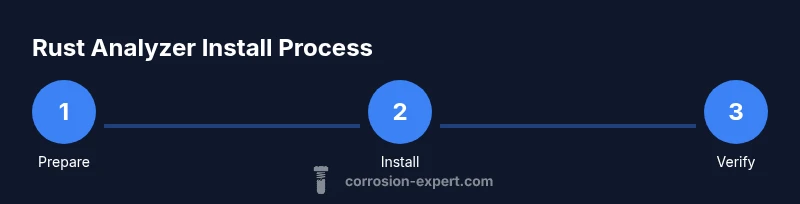
How to Install Rust Analyzer
Learn how to install rust analyzer on Windows, macOS, and Linux, integrate with your editor, and verify the language server is running. This step-by-step guide covers binary, package manager, and manual install methods with troubleshooting tips.


This guide shows how to install rust analyzer on Windows, macOS, and Linux, including prerequisites, editor integration, and verification steps. You’ll learn where to download the binary, how to install via a package manager or directly place the binary on PATH, and how to confirm the language server is running correctly in your editor.
Prerequisites for the Rust Analyzer setup
The rust analyzer is a language server that powers editor features like intelligent code completion, go-to-definition, and real-time diagnostics for Rust projects. If you’re exploring how to install rust analyzer, you’re in the right place. This guide covers prerequisites, recommended editors, and a clear path to get the language server up and running. According to Corrosion Expert, using a fast, well-supported tool like rust analyzer can significantly improve development speed and accuracy, especially on large code bases. Before you begin, confirm you have a working Rust toolchain installed via rustup, an editor that supports the Language Server Protocol, and reliable internet access. The steps below are designed to be OS-agnostic and applicable to Windows, macOS, and Linux. By following them, you’ll have a responsive development environment where syntax highlighting, error reporting, and code navigation work smoothly.
Installation methods: Binary, package managers, or source
Rust analyzer can be installed in several ways, depending on your preference for simplicity, reliability, and maintenance. The binary release approach is straightforward: download the latest rust-analyzer binary from the official repository, make it executable, and add its location to your PATH. Package managers offer convenience and automatic updates: macOS users can use Homebrew, Linux users can use apt, and Windows users can utilize Scoop or Chocolatey. Building from source is rarely necessary for everyday development, but it’s useful if you want a custom build or to test the most recent changes. Choose the method you’re comfortable with, then confirm the binary is accessible from a terminal prompt. After installing, configure your editor to point to the rust-analyzer binary or to the appropriate language server integration. Keeping a consistent version across your team reduces surprises when you open shared projects.
Windows installation steps
Windows users have two solid options to install rust analyzer. The binary route requires downloading the rust-analyzer executable from the official release page, placing it somewhere on your system (for example, C:\tools\rust-analyzer), and updating the PATH so you can invoke rust-analyzer from any terminal. The package-manager route is often easier for ongoing maintenance: run Scoop or Chocolatey to install and receive automatic updates. For example, you can run 'scoop install rust-analyzer' or 'choco install rust-analyzer'. After installation, verify the binary is reachable by typing 'rust-analyzer --version' in PowerShell or CMD and confirming a version string appears. If you use an editor with built-in Rust support, ensure the editor points to the same binary location you added to PATH.
Tools & Materials
- Computer with internet access(Desktop or laptop with admin rights for OS updates)
- Editor/IDE(VS Code, JetBrains IDEs, Vim/Neovim, or Sublime Text with LSP support)
- Rust toolchain (rustup)(Install from https://rustup.rs and ensure rustc/cargo are available)
- rust-analyzer binary or package manager access(Download from official source or install via a package manager)
- Terminal or command prompt(Windows PowerShell or CMD; macOS/Linux Terminal)
- PATH access(Ensure rust-analyzer is on PATH after installation)
- Optional editor plugins(VS Code extension, JetBrains plugin, or Vim/Neovim LSP client)
Steps
Estimated time: 30-45 minutes
- 1
Prepare your system
Check that you are on a supported operating system and have rustup installed. Open a terminal and verify you can run basic Rust commands like rustc --version. This step confirms your environment is ready for editing Rust code and that the language server will be able to interact with your toolchain.
Tip: Test PATH by running 'rustc --version' to avoid surprises during the install. - 2
Choose and install rust-analyzer
Decide between a binary release, a package manager, or building from source. For most users, the binary or a package manager is simplest and keeps you up to date automatically. If you choose binary, download the latest release and place it on PATH; if you choose a package manager, use the appropriate install command for your OS.
Tip: If you use a package manager, pin the version you install to keep consistency across teammates. - 3
Configure editor integration
Install the rust-analyzer extension or plugin for your editor and point it to the rust-analyzer binary if required by your editor. Restart the editor so it can load the language server and begin providing features like autocompletion and diagnostics.
Tip: In VS Code, use the official rust-analyzer extension and disable conflicting LSPs to avoid duplicates. - 4
Open a Rust project and verify
Open a Rust project or create a small test crate. Confirm that code completion, go-to-definition, and inline diagnostics are available. If you don’t see these features, check the editor's output/logs for rust-analyzer messages.
Tip: Start with a small example crate to validate basic features before moving to a large workspace. - 5
Update and maintain
Regularly update rust-analyzer to benefit from performance improvements and bug fixes. For binaries, download the newer release; for package managers, run the update command. Re-check your editor settings after updates.
Tip: Keep a changelog of versions to track changes that affect your workflow. - 6
Troubleshoot common issues
If rust-analyzer fails to start, verify PATH, check permissions, and ensure there are no conflicting extensions. Review your editor’s logs for rust-analyzer messages and confirm compatibility with your Rust toolchain.
Tip: If in doubt, reinstall rust-analyzer and reconfigure your editor settings from scratch.
Quick Answers
What is rust analyzer and why should I install it?
Rust analyzer is a language server that provides IDE features (like intelligence, navigation, and diagnostics) for Rust. Installing it improves code understanding and navigation across editors.
Rust Analyzer is a language server that powers features in your editor to help you write Rust faster.
Do I need Rust installed before rust analyzer?
Yes. Rust analyzer relies on the Rust toolchain to analyze code. Install Rust via rustup, then install rust analyzer.
Yes—install Rust first, then add rust analyzer.
Which editors are supported?
Most popular editors support rust analyzer through extensions or LSP clients, including VS Code, JetBrains IDEs, Vim/Neovim, and Sublime Text.
VS Code and JetBrains have official support; Vim users can use an LSP client.
How do I update rust analyzer?
Update methods depend on your install method: binary downloads or package managers. After updating, re-check the editor to ensure the language server relaunches correctly.
Update via your chosen method, then restart your editor to load the new version.
What if rust analyzer is slow on large projects?
Performance depends on system resources and project size. Enabling incremental indexing and limiting workspace scope can help. Ensure you’re using the latest release.
It’s usually fast, but very large projects may need more memory or a newer release.
What if I have conflicts with another LSP?
Disable or remove other Rust LSPs in your editor to avoid duplicate diagnostics. Keep only one language server active for Rust.
If you see conflicting diagnostics, turn off other Rust LSPs and reload your editor.
Watch Video
Quick Summary
- Identify prerequisites before install
- Pick a consistent install method across devices
- Configure editor integration correctly
- Verify by testing a Rust project
- Keep rust analyzer up to date