Rust Update Troubleshooting: Fix rustup Update Failures
Struggling with why rust update fails? This troubleshooting guide walks you through common causes, diagnostics, and safe fixes for rustup and cargo updates, with step-by-step actions and safety tips.


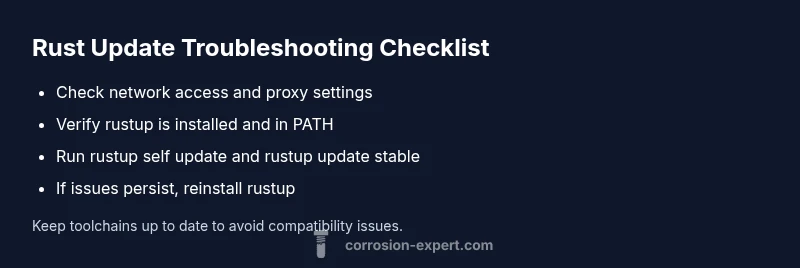
Most likely cause is a network proxy or blocked access, or rustup cache corruption. Quick fix: run rustup self update, ensure rustup is in PATH, then update the stable toolchain. If issues persist, consider reinstalling rustup. See our full step-by-step guide for the complete troubleshooting flow.
Why Won't Rust Update? Common Causes
According to Corrosion Expert, update failures for the Rust toolchain most often come from blocked network access, an outdated rustup, or permission issues that prevent rustup from writing to its cache or toolchain directories. Additional culprits include misconfigured proxies, DNS resolution problems, or a corrupted rustup cache. Understanding these causes helps you apply the simplest fix first and reduces the need for reinstalling rustup. Corrosion Expert analysis, 2026, indicates that network restrictions are the leading factor behind most update stalls in corporate or restricted environments.
Quick Checks You Can Do Right Now
- Verify your internet connection is active and that you can reach the Rust registry endpoints. If you're behind a VPN or proxy, temporarily disable it to test updating.
- Confirm rustup is installed and in your PATH. On Unix-like systems run which rustup; on Windows run where rustup.
- Test rustup itself by running rustup --version and rustup self update, then attempt rustup update stable. Note any error messages; they point to the root cause.
- Check file permissions on the rustup home directory and toolchains directory. Ensure your user account can write there; adjust permissions or run the installer with elevated privileges if required.
- If failures persist, pay attention to DNS or TLS errors in the logs and consider temporarily adjusting network settings for testing. If problems continue, reinstall rustup from the official site.
Diagnostic Flow Overview
This section outlines a practical flow to pinpoint the failure quickly. Symptom: the update command exits with a non-zero status or prints network-related errors. Diagnosis: common causes include blocked network access, outdated rustup, misconfigured proxies, and PATH problems. Solutions: start with updating rustup and the toolchain, then address network or proxy settings; if necessary, reinstall rustup. This approach minimizes changes and helps preserve existing toolchains.
Step-By-Step Fix: Reinstall Rustup If Needed
- Open a terminal or command prompt. 2) Run rustup self uninstall to remove the current installation. 3) Reinstall rustup from the official source and ensure it is added to PATH. 4) Verify with rustup --version and then perform rustup self update and rustup update stable. 5) Reconfigure any necessary proxies or network settings if the problem recurs. Pro tip: back up any custom toolchains you rely on before uninstalling.
Prevention, Safety Warnings, and Best Practices
- Keep rustup and toolchains updated regularly to avoid compatibility issues.
- Avoid running update commands with administrator privileges unless required by your system policy.
- Document any network changes (proxies, firewalls, DNS) so you can revert if updates fail again.
- If you’re in a corporate or restricted network, coordinate with your IT team to allow Rust's update endpoints.
- Never ignore a repeating update error; repeated failures can indicate a larger configuration problem that needs a planned fix.
Steps
Estimated time: 30-60 minutes
- 1
Verify environment and prerequisites
Confirm internet access, check PATH for rustup, and note any error messages. Ensure you’re not blocked by a firewall or corporate proxy. This quick check helps rule out basic blockers before deeper fixes.
Tip: Run which rustup (Linux/macOS) or where rustup (Windows) to confirm PATH. - 2
Update rustup itself
Run rustup self update to refresh the updater. This ensures you can apply subsequent toolchain updates without the updater being stale. If this fails, capture the error output for reference.
Tip: If you can’t run rustup, try reinstalling rustup as a clean start. - 3
Update the stable toolchain
After rustup updates, execute rustup update stable to bring your compiler and standard library up to date. Verify the update with rustc --version.
Tip: Check for any TLS or DNS errors in the logs that might indicate network issues. - 4
Troubleshoot network or proxy issues
If updates fail due to network constraints, adjust or temporarily bypass proxies, check DNS resolution, and ensure TLS certificates are valid. Test with a simple network change to confirm cause and effect.
Tip: Document any network changes and revert them after testing. - 5
Reinstall rustup if needed
If all else fails, uninstall rustup and install it again from the official source. This resolves cache corruption and misconfigurations that blocks updates.
Tip: Back up any custom toolchains if you have non-default configurations.
Diagnosis: Rust toolchain update fails with an error message or no response
Possible Causes
- highNetwork issue (proxy, firewall, DNS blocking rustup)
- mediumOutdated rustup or corrupted cache
- lowPATH or permissions issue preventing rustup from running
Fixes
- easyRun rustup self update to refresh the updater, then rustup update stable
- easyCheck and configure any proxy or VPN settings; ensure PATH includes rustup and cargo
- mediumIf issues persist, reinstall rustup from the official source and re-run updates
Quick Answers
Why won't rust update work on my machine?
Update failures are usually caused by network blocks, an outdated rustup, or PATH/permissions issues. Start with rustup self update and verify PATH, then update the stable toolchain. If problems persist, consider a clean reinstall of rustup.
Common update problems are usually network or PATH related. Try updating rustup and the stable toolchain, then reinstall if needed.
What should I do first when rustup update fails?
Check your network connection and VPN/proxy settings, confirm rustup is in PATH, then run rustup self update followed by rustup update stable. Note the exact error messages for targeted troubleshooting.
First, check network and PATH, then update rustup and the stable toolchain.
Can network issues block rustup updates?
Yes. Proxies, firewalls, or DNS restrictions can prevent rustup from downloading updates. Temporarily adjusting network settings or bypassing proxies can reveal if this is the root cause.
Network restrictions can stop updates; test by adjusting proxies or VPN.
Is reinstalling rustup safe?
Reinstalling rustup is safe and often fixes corrupted caches or misconfigurations. Back up any custom toolchains if you have non-default setups, then reinstall from the official source.
Reinstalling rustup is a safe fix when updates fail.
How can I prevent rust update issues in the future?
Keep rustup and toolchains updated, document network changes, and ensure PATH is stable. Regular maintenance reduces surprises during critical builds.
Preventive steps include regular updates and stable PATH settings.
Watch Video
Quick Summary
- Verify network/proxy settings before deeper fixes
- Keep rustup updated and in PATH
- Retry updates with rustup self update and rustup update stable
- Reinstall rustup if common fixes fail