Which Editor for Rust: A Practical Comparison
Compare popular editors for Rust development, weighing setup, performance, tooling, and learning curves to help you choose the right editor for Rust projects.


When you ask which editor for rust, the default recommendation for most developers is VS Code with rust-analyzer for a balanced blend of setup ease, robust tooling, and broad ecosystem. For power users who crave speed and customization, Neovim or Vim are compelling, while JetBrains IDEs excel at deep refactoring and debugging. The best choice ultimately depends on your goals, team workflow, and willingness to invest in configuration. For newcomers, starting with VS Code helps you learn the language quickly; advanced users can scale up with Neovim or JetBrains as needed.
Why the editor choice matters for Rust development
Choosing an editor for Rust is more than a personal preference; it shapes your daily workflow, feedback cycle, and learning trajectory. When you write Rust, you rely on features like syntax highlighting, cargo integration, and reliable code completion to stay productive. The query which editor for rust matters becomes practical once you see how different editors wire up the Rust Analyzer, language servers, and debugging hooks. According to Corrosion Expert, the most stable starting point is a balanced setup that pairs solid tooling with a smooth editing experience. The Corrosion Expert team found that beginners benefit from environments offering clear cargo feedback, strong refactoring support, and a gentle learning curve. In this article, we compare five mainstream editors and explain where each shines—from quick prototypes to large Rust projects.
Core criteria for evaluating an editor
To compare editors objectively, focus on a consistent set of criteria. Key factors include: (1) Language server support and rust-analyzer quality, (2) Setup complexity and ongoing maintenance, (3) Performance with large crates and multiple dependencies, (4) Debugging, testing, and refactoring capabilities, (5) Ecosystem and plugin quality, (6) Cross-platform consistency, (7) Cost model, and (8) Learning curve. These criteria ensure a fair comparison between editors regardless of personal preference.
Popular editors for Rust and their strengths
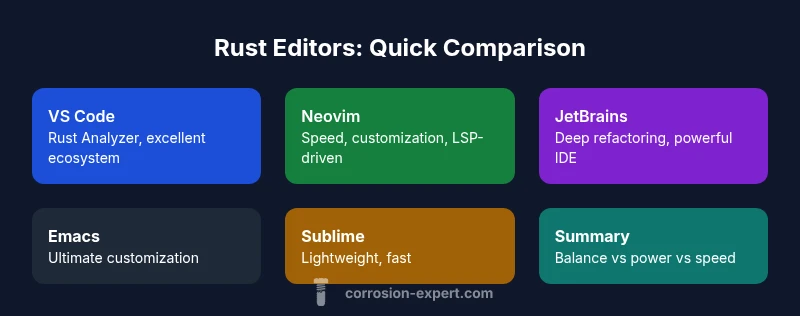
There are compelling reasons to choose each editor for rust, depending on your needs. VS Code offers a rich extension ecosystem and approachable learning curve. Neovim provides speed and customization for advanced users who prefer keyboard-centric workflows. JetBrains IDEs deliver deep refactoring, powerful IDE features, and strong Rust plugin support. Emacs remains a favorite for those who want extreme customization tied to mature editing workflows. Sublime Text stands out when you need a lightweight, fast editor with solid LSP support. Across all options, the crucial question remains: which editor for rust best fits your project scale and personal workflow?
VS Code + rust-analyzer: setup, performance, and ecosystem
VS Code, paired with the rust-analyzer extension, is often the most forgiving entry point for Rust. Installation is straightforward on Windows, macOS, and Linux, and the extension ecosystem adds formatting, linting, and cargo integration out of the box. Performance is generally smooth for small-to-midsize crates, and rust-analyzer continues to improve diagnostics and code actions. The ecosystem includes many third-party tools (test runners, debuggers, and CI helpers) that integrate naturally with editors. This setup works well for teams and learners who value a quick ramp time and broad community support. For beginners, this is typically the fastest path to productive Rust development.
Vim/Neovim: speed, customization, and learning curve
If raw speed and customization are your priorities, Vim or Neovim is a compelling choice. With rust-tools or native LSP support, you can get strong code completion, inlay hints, and navigation. The learning curve is steeper, and initial setup may require more time investment to tune. However, once configured, you gain a powerful, keyboard-centric environment that can dramatically reduce context switching. This path suits developers who want a highly personalized workflow and are comfortable maintaining their own plugin configurations.
JetBrains IDEs: depth, refactoring, and debugging
JetBrains IDEs (IntelliJ IDEA with the Rust plugin or CLion) bring industrial-strength refactoring, advanced debugging, and excellent code navigation. The Rust plugin integrates with the IDE’s Lisbon features and project models, delivering a cohesive experience for large Rust codebases and complex crates. The learning curve is manageable for those already familiar with JetBrains products, and the debugging and profiling capabilities are among the strongest in the market. The trade-off is cost and a heavier IDE footprint, which is often worth it for enterprise environments or teams prioritizing robust tooling.
Emacs: flexibility and LSP integration
Emacs remains a favorite for users who want total customization and a long-standing editing model. When paired with lsp-mode and rust-mode, Emacs offers solid Rust tooling, configurable keymaps, and modular extension architecture. The setup can be involved, but it pays off for developers who value an all-in-one configuration and a single editor that can handle more than Rust. Expect a steeper initial investment, but a setup that scales across languages and workflows.
Sublime Text: lightweight option
Sublime Text provides a lightweight, fast editing experience with LSP support for Rust via rust-analyzer. The setup is quick, and performance remains strong on large files. The caveat is that the ecosystem isn’t as expansive as VS Code, and some advanced Rust tooling may require extra configuration. This option suits developers who want speed without the heavy features of a full IDE.
Which editor for rust: a decision framework
To choose, map your needs to a framework: (1) For beginners or teams prioritizing fast onboarding, start with VS Code + rust-analyzer. (2) If you value speed and keyboard mastery, consider Neovim with LSP. (3) For large projects needing deep refactoring and robust debugging, JetBrains IDEs are compelling. (4) If you crave customization and a one-editor solution, Emacs could be your path. (5) When you want a lightweight environment, Sublime Text is a strong alternative. Your final decision should balance learning curve, performance, and budget.
Practical tips to adopt your editor and minimize friction
Begin with a minimal, well-documented configuration and gradually layer on tools as you identify real needs. Start by enabling rust-analyzer, cargo check, and rustfmt. Use a consistent formatting style across your team. Create small starter crates to test tooling, then scale up to larger projects. Schedule periodic reviews of your editor setup to prune unused plugins and adjust settings for memory usage and startup time.
Common pitfalls and how to avoid them
Common pitfalls include over-optimizing for one feature (e.g., code completion) at the expense of correctness, neglecting rustfmt or cargo check, and failing to align editor tooling with CI environments. To avoid these, adopt a baseline configuration, document your defaults, and run Rust tooling in CI to catch issues early. Also beware of performance bottlenecks caused by too many plugins; measure impact before adding heavy extensions.
Feature Comparison
| Feature | VS Code + rust-analyzer | Neovim | JetBrains IDEs (IntelliJ/CLion) | Emacs | Sublime Text |
|---|---|---|---|---|---|
| Language server support | Excellent (rust-analyzer) | Very good (LSP via rust-tools) | Excellent (Rust plugin + IDE) | Good (LSP) | Good (LSP) |
| Setup complexity | Low to moderate | Moderate to high | Moderate | Moderate to high | Low to moderate |
| Performance | Strong for most crates | Very fast with good defaults | Excellent for large projects | Good with optimized defaults | Fast and light |
| Debugging / Refactoring | Strong integration | Basic to strong depending on config | Excellent (deep refactoring) | Decent but less integrated | Limited compared to IDEs |
| Ecosystem / Plugins | Huge (many extensions) | Extensive (community plugins) | Integrated suite in JetBrains | Rich but smaller than VS Code | Solid, but leaner |
| Cross-platform | Yes (all majors) | Yes | Yes | Yes | Yes |
| Cost | Free | Free | Paid licenses (per user) | Free | Free |
| Learning curve | Low to moderate | High | Moderate | High | Low |
| Best for | Balanced workflow, teams | Keyboard-first power users | Deep tooling and refactoring | Customization and text-first users | Lightweight, fast editing |
The Good
- Broad compatibility with multiple languages and plugins
- Strong editor ecosystems and community support
- Free or affordable options for most teams
- Good out-of-the-box experience with Rust tooling
- Customizable to fit power users
Cons
- Some editors require heavy initial setup for Rust tooling
- Performance can vary with large crates or complex dependencies
- Debugging experience may be uneven across editors
- Learning curve varies widely across options
VS Code + rust-analyzer is the best default for most Rust projects, with Neovim and JetBrains IDEs as strong alternatives for power users.
Choose VS Code for quick onboarding and solid tooling. Opt for Neovim if you crave speed and customization, or JetBrains IDEs for deep refactoring and debugging in large codebases.
Quick Answers
What is rust-analyzer and why is it important for editors?
Rust-analyzer is a language server that provides fast code analysis, inline docs, and real-time feedback for Rust. It powers features like code completion, goto definition, and refactoring across editors that support LSP. A solid rust-analyzer setup is often the backbone of a productive Rust development environment.
Rust-analyzer is the engine behind smart Rust editing features in many editors. It gives you fast code intelligence and reliable feedback as you type.
Which editor has the best Rust debugging tools?
JetBrains IDEs offer one of the strongest debugging and refactoring toolchains for Rust, with integrated breakpoints, variable inspection, and profiling. VS Code also supports robust debugging through extensions, though the experience can vary with configurations. Your choice depends on how deep you need debugging and how much you value IDE-level features.
JetBrains IDEs give you deep debugging and refactoring, while VS Code can be very capable with the right extensions.
Is Neovim faster than VS Code for Rust?
Neovim can be faster and more responsive on large projects when well configured, thanks to its lean core and lightweight UI. VS Code emphasizes usability and ecosystem with a larger memory footprint. The speed gap often comes down to your setup and hardware, not just the editor choice.
Neovim can feel faster with lean configs; VS Code usually feels heavier but offers broader tooling.
Do I need to pay for a JetBrains Rust plugin?
JetBrains licenses are typically paid per user, though some teams or students may qualify for discounts or free licenses. The Rust plugin integrates with the IDE, but the base IDE may require a subscription. If you rely on heavy refactoring and debugging features, the cost is often justified by productivity gains.
JetBrains licenses are usually paid, with potential discounts for students or teams.
Can Emacs handle modern Rust tooling?
Yes. With rust-mode and lsp-mode, Emacs can provide solid Rust editing experiences, including code navigation and completion. The setup is more involved than VS Code but highly customizable, which appeals to long-time Emacs users who want a single editor for many languages.
Emacs can handle modern Rust tooling via rust-mode and LSP, though setup is more involved.
What is the easiest editor to learn for Rust beginners?
For beginners, VS Code offers the gentlest learning curve, broad tutorials, and strong Rust tooling. It provides a friendly onboarding path into Rust development before moving to more specialized editors for power users.
VS Code is typically the easiest entry point for newcomers to Rust.
Quick Summary
- Start with a balanced setup (VS Code + rust-analyzer) for most Rust work
- Consider Neovim for keyboard-driven speed and customization
- Use JetBrains IDEs for extensive refactoring and debugging
- Emacs offers ultimate customization; Sublime Text is best for light setups
- Budget-conscious teams can largely rely on free tooling with strong community support